Data flow: Sending documents between BlackBerry Work and Microsoft Intune managed apps using the BlackBerry BRIDGE app
BlackBerry Work
and Microsoft Intune
managed apps using the BlackBerry BRIDGE
appThis data flow shows how to share documents that are received as email attachments in
BlackBerry Work
or saved to the Local Docs
folder or an Enterprise remote Docs
location to Intune
managed apps on Android
and iOS
devices when the BRIDGE
app is installed. In this example, a user opens a Microsoft
Word
document that has been received as an email attachment and that requires feedback.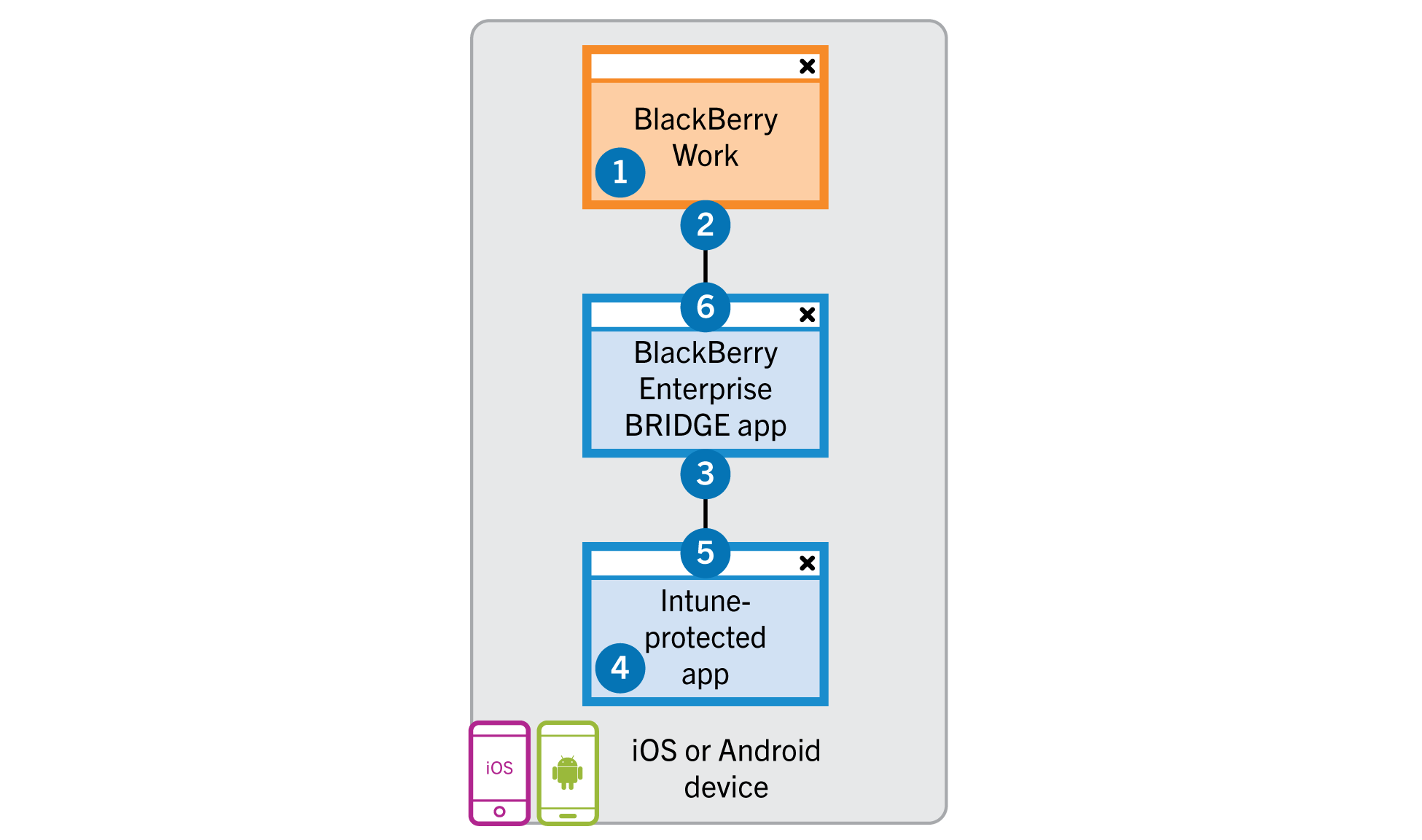
- The user downloads and previews a file received as an email attachment inBlackBerry Work.
- If theMicrosoft Intuneapp protection policy profile allows it, the device sends a copy of the file using the AppKinetics Transfer File service through secured channels to theBRIDGEapp.
- TheBRIDGEapp securely sends a copy of the file over anIntuneprotected channel to theIntunemanaged app (for example,Microsoft Word). TheBRIDGEapp deletes the copy of the file within theBRIDGEapp after the file transfer is complete.
- The user preforms the following actions:
- Saves a copy of the file in anIntuneprotected area of theIntunemanaged app.
- Modifies the file as required and saves the updated file.
- The device sends a copy of the file back to theBRIDGEapp over theIntuneprotected channel.
- TheBRIDGEapp sends the copy of the file toBlackBerry Workusing the AppKinetics Transfer File service through secured channels to attach to the original or a new email or to save to the LocalDocsfolder or an Enterprise remoteDocslocation. TheBRIDGEapp deletes the copy of the file within theBRIDGEapp after the file transfer is complete.